OverviewTwo Factor Authentication provides additional security for your Vivantio Pro / ITSM instance by requiring that your Technicians enter a single-use code when logging in.
Vivantio's Two Factor Authentication implementation can be used with single-use code generators such as Google Authenticator, which is available for both Android and iOS devices.
Enabling Two Factor Authentication Before you can start using Two Factor Authentication, you need to enable it in the Vivantio Admin area. The setting can be found under: Vivantio > Admin Area > Setup > Global Settings > Features 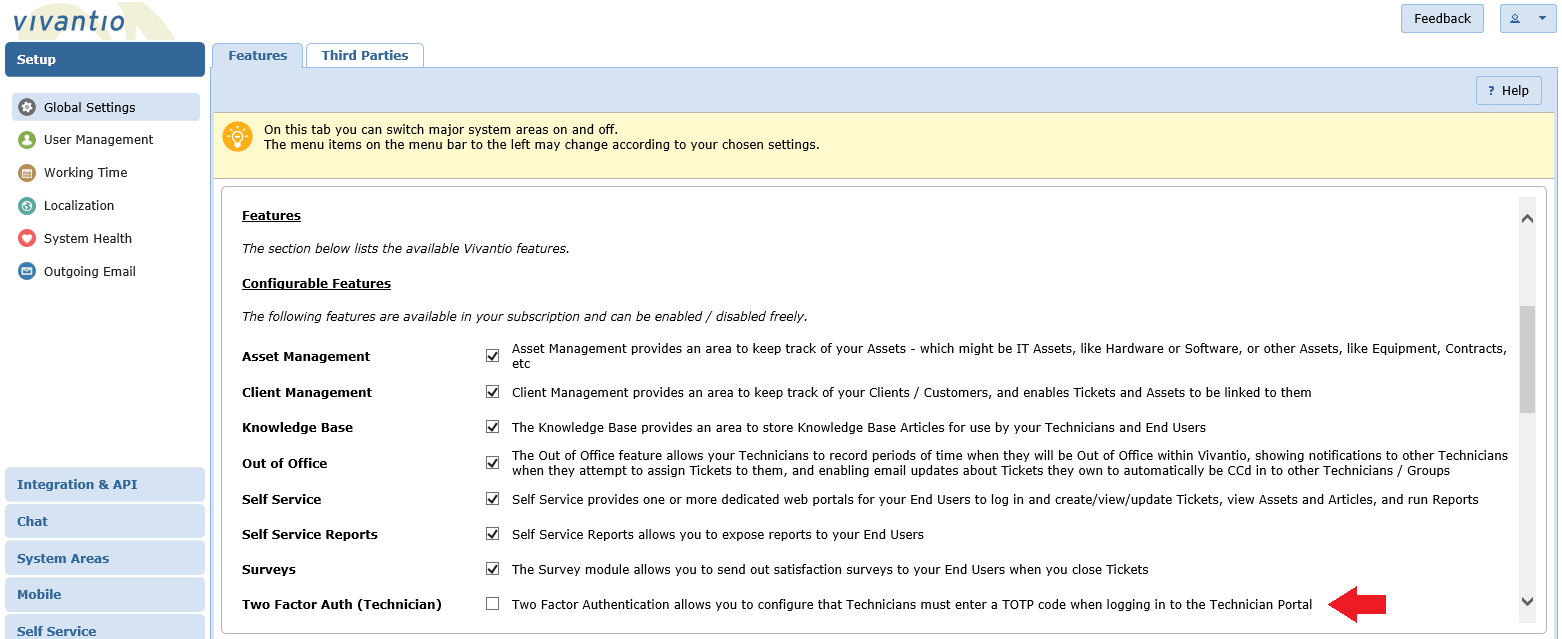
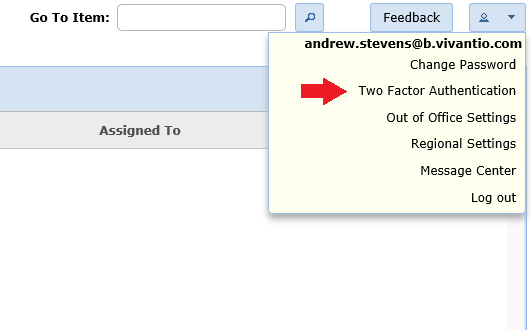
Once enabled, when logged in as a Technician, you will have a new option available in the User Menu in the top right:
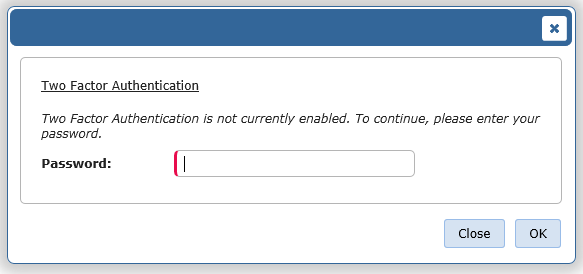
Clicking the Two Factor Authentication option for the first time will prompt you to enter your password:
After entering your password, a unique secret will be generated for you and will appear on screen, as both text and a QR code:
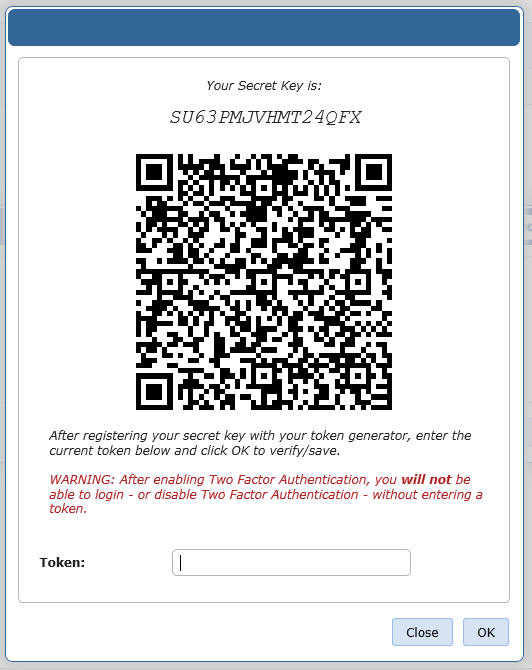
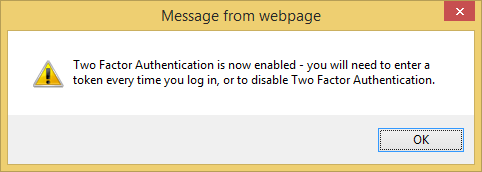
Either scan the QR code, or manually enter the secret, into your device, and then enter the code that is generated. After doing so, you'll be shown confirmation that 2FA has been enabled:
The next time you log in to Vivantio, you'll be prompted to enter the 2FA code:
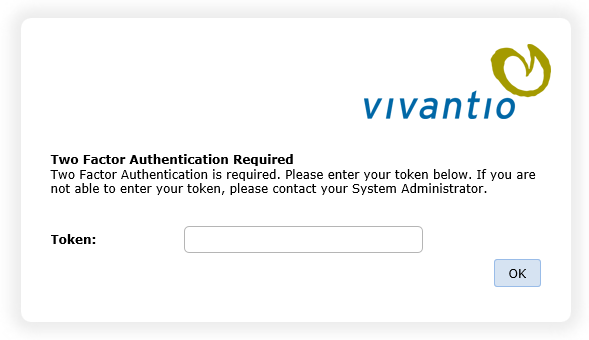
After entering it, you'll be logged in as normal.
Managing Two Factor Authentication
Once you have 2FA enabled, selecting the Two Factor Authentication option from the User Menu will prompt you for both your password and your 2FA code: 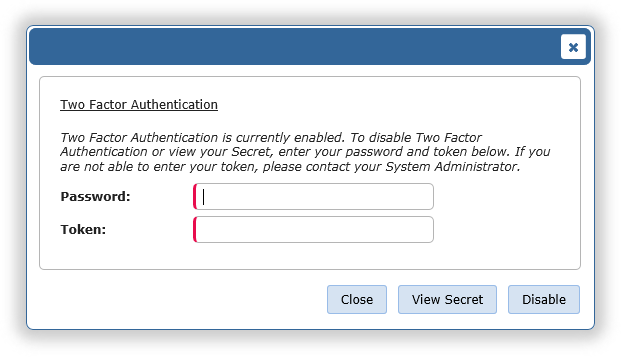
After entering both values, you can either view your secret - for example if you want to register a second device - or disable Two Factor Authentication (if allowed by your administrator - see below).
Enforcing Two Factor Authentication
As a Vivantio Administrator, you can choose to enforce Two Factor Authentication for some or all of your Technicians. You can do this under: Vivantio > Admin Area > Setup > User Management > Users 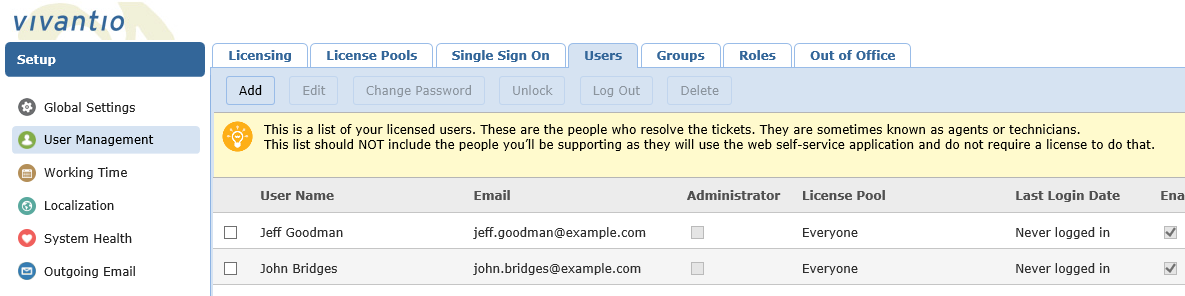
When adding or editing a Technician, you have the option to specify that 2FA is required:
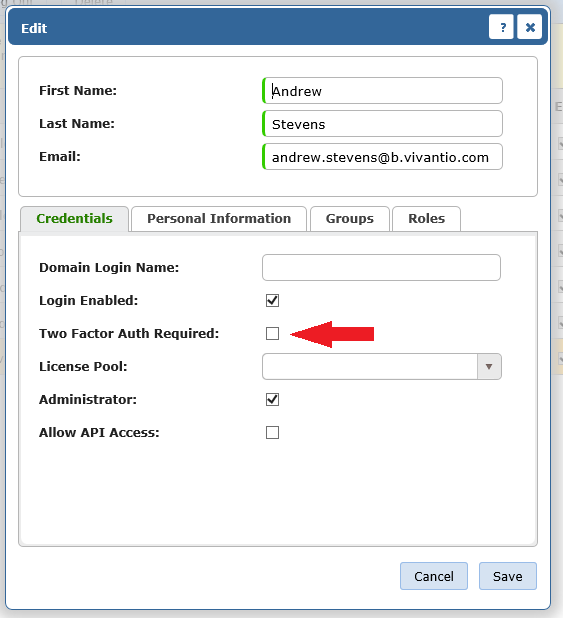
If you enable this option for a Technician that isn't currently using 2FA, the next time they log in to Vivantio, they will be prompted to enable it, and won't be able to use Vivantio until they have done so.
Recovery Options
If for any reason you're not able to generate a 2FA code to log in to Vivantio, you can either: - Use the Password Reset process from the login screen, or
- Ask an Administrator to reset your password
Either of those operations will clear your 2FA settings.
Single Sign On
If 2FA is enabled for your account, you will be prompted to enter your 2FA code even if you are using Single Sign On. | 
