

Overview
Vivantio's customer base includes HR departments, Solicitors, Government Offices and medical facilities who have very highly confidential data, which must be restricted. We use roles and permissions to restrict data both in the main application and the self-service portal.
In the main application, you can restrict what a licensed user can see using data permissions and what they can do using process permissions. In the self-service portal, as standard, an end user can only see their own tickets. However, with roles and permissions you can give a department manager access to their department’s tickets or the senior management could view the tickets within the whole company.
Permissions work in conjunction with roles; when a role has been created and members (users) are added to it, they are listed in the permissions tab and permissions are applied to identify what the users can and can't view, in terms of the different system areas; tickets, assets, articles, reports etc. A single user can be added to many roles and so it is important to bear in mind the permissions which have been applied do not conflict with one another.
For example, one permission could restrict a user to view a particular incident, another could allow it and so in this case, the user would be able to view the Incident. Further configuration can be set to specify which of the two is preferred.
Permissions come in three levels
- No access
- Full access
- Custom
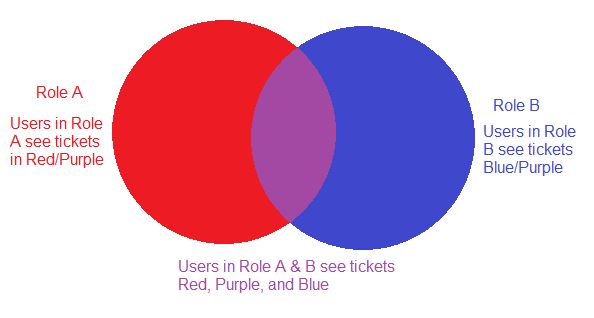
The end permissions for a user are based on the sum total of all records a user can see, this is explained in the diagram below.
Permissions do not 'bridge' system areas, meaning that, if you configure a role as only able to view certain Clients, that does not automatically prevent that role being able to view Tickets for that Client; it only prevents them viewing that Client
There are some special fields in the Expression Builder, these are:Ticket / Group Name / Equals / In my groups: Ticket is assigned to any group the current user belongs to.
Date Special Fields:Today: The date matches today's date
GuidanceNavigate to the Admin Area > System Areas > Select the system area e.g. Ticket > Permissions > Data Permissions / Process Permissions
The Data and Process Permission Tabs are populated with the Roles from Setup > User Management > Roles
Data PermissionsTo edit Data Permissions, select the relevant Role and click Edit
|
It is here you will be able to select from the 3 levels of access (including setting up a Custom access level if required)
Updated: 08 March 2023