

Overview
Permissions work in conjunction with roles; when a role has been created and members (users) added to it, they are listed in the permissions tab and permissions are applied to identify what the users can and cant view, in terms of the different system areas; tickets, assets, articles, reports etc. A single user can only be added to one role.
Permissions come in three levels;
- No access
- Full access
- Custom.
It is here in the Permissions tab in the Admin area that you can set the filters for the custom permissions.
The end permissions for a user are based on the sum total of all records a user can see, this is explained in the diagram below.
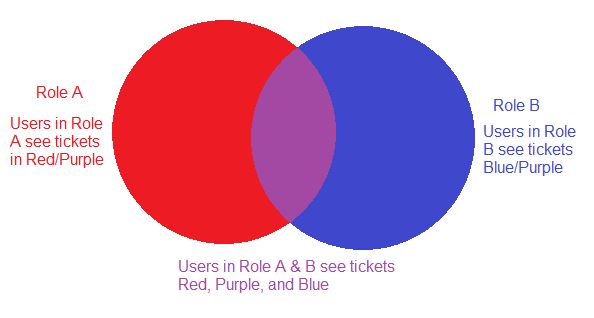
Permissions do not 'bridge' system areas, meaning that if you configure a role as only able to view certain Clients, that does not automatically prevent that role being able to view Tickets for that Client; it only prevents them viewing that Client
A common feature in Vivantio is the Expression Builder, Permissions uses this feature to create conditions for the menu item. Filters are added, which exist for All, Any or None of the conditions. The All option contains AND statements when conditions are created, whereas the Any option conditions OR statements. For example, if one condition of Status = Open is created within the All section of the Expression Builder and two conditions of Priority = High , Priority = Medium are created from the Any section then the Expression Builder would apply all open tickets AND either the Priority High OR the Priority Medium, but not both. When conditions and filters have been set, they run automatically in the background applying the actions created.
There are some special fields in the Expression Builder, these are:-
- Ticket / Group Name / Equals / In my groups = Ticket is assigned to any group the current user belongs to.
- Ticket / Owner Name or Taken By Name / Equals / Logged On User = Ticket is assigned to the current user.
- Ticket / Owner Name or Taken By Name / Equals / Me and my Groups = Ticket is assigned to the logged on user or in any group that this user belongs to but not assigned to a particular user.
Date Special Fields: -
- Today: the date matches todays date
- Yesterday: the date matches yesterdays date
- Tomorrow: the date matches tomorrows date
- Days Before Today: User can type a number in here
- Days After Today: User can type a number in here
Guidance
Navigate to the Admin Area > Self Service > System Area you wish to add the Data Permission e.g. Tickets > Data Permissions
To Add Permissions:
- Tick the box of the role you wish to add permissions
- Click Edit
- Select the Custom Filter Mode from the drop down box - The options here are: -
- Apply Standard Filter Only
- Apply Custom Filter Only
- Apply Standard and Custom Filter
- Apply Permission Type from the drop down box - the options here are: -
- View in Client
- View in Location
- View Own
When Custom Filter options are selected, the Expression Builder becomes available to add logic here. This is an ITSM feature only and must be enabled as part of the Advanced Self Service Features set.
Standard fields and custom fields are available in the expression builder to provide a granular level of fields in which your logic can be tailored for your process.
e.g To restrict field agents view of their customer base only in the self service portal you can create a role “All XYZ Agent Customers” which is connected to a custom form field. Create a contact for the Agent’s user who will need access. Add the role “All XYZ Agent Customers” to that contact. That contact would now have view only rights to see all tickets for the customers with form fields that match the role configuration.
- Click Save
To Edit Permissions:
- Tick the box of the Role you wish to edit
- Click Edit
- Make your changes to the Permissions
- Click Save
To Delete Permissions:
- Tick the box of the Role you wish to delete permissions from
- Click Edit
- Click Remove icon next to the permission you wish to delete
- Click Save
Reviewed: 30 March 2023